
Using AICentOS with Claude Code
New here? Complete Account Setup first.
1. Environment Setup
Install Node.js
Claude Code is installed via npm. Confirm Node.js is available first.
node -v
npm -vbrew install nodenode -v
npm -vIf not installed, download from nodejs.org/en/download for your platform. Windows requires a restart after installation.
Windows Only: Install Git Bash
Claude Code requires a bash environment. Windows users must install Git Bash:
- Download from git-scm.com/install/windows and install the appropriate version.
- Verify: right-click the desktop — if Open Git Bash here appears, installation succeeded.
2. Install Claude Code via ZCF
npx zcf3. Configure AICentOS
In the terminal, type
npx zcfand press Enter. When promptedOk to proceed? (y), typeyand press Enter.Select the ZCF display language: Choose English.
After setup completes, select:
1. Full Init - Install Claude Code + Import Workflows + Configure API or CCR Proxy + Configure MCP ServicesModify template language configuration: Select
NoAI output language: Select
EnglishInstall Claude: Select
YesAPI configuration mode: Select
Custom API ConfigurationAPI provider: Select
Custom ConfigurationConfiguration name: Enter a custom name in English
Authentication type: Select
API KeyAPI Base URL:
https://www.aicentos.comAPI Key: Enter the token generated from your AICentOS console
Model-related configuration: Press Enter to skip with defaults
Workflow type: Select
General ToolsOutput style: Choose according to personal preference
Configure MCP: Select
YesMCP services: Use Space to select desired services, then press Enter to proceed
Configure CCometixLine: Press Enter directly
Back at the main menu, enter:
qIn the terminal, type:
claude- Select
Yes, I trust this folder - For API selection, make sure to select YES (the first option)
- Select
4. Launch
cd my-project
claude
5. Model Selection
Type /model inside Claude Code to switch models:
| Option | Model | Notes |
|---|---|---|
| Default | claude-sonnet-4-5-20250929 + claude-haiku-4-5-20251001 | Auto-selected by task complexity. Recommended for daily use. |
| Opus | claude-opus-4-5-20251101 | Strongest reasoning, higher cost |
| Haiku | claude-haiku-4-5-20251001 | Lightweight and fast |
You can also pin a model via environment variable:
export ANTHROPIC_MODEL=claude-sonnet-4-5-20250929
claude$env:ANTHROPIC_MODEL="claude-sonnet-4-5-20250929"
claudeUpgrade Claude Code
If the model version appears outdated, run the upgrade command and restart your tools:
npm install -g @anthropic-ai/claude-code6. IDE Integration
IntelliJ IDEA
Navigate to: File → Settings → Plugins → Marketplace → search claude code, find Claude Code Terminal and install:
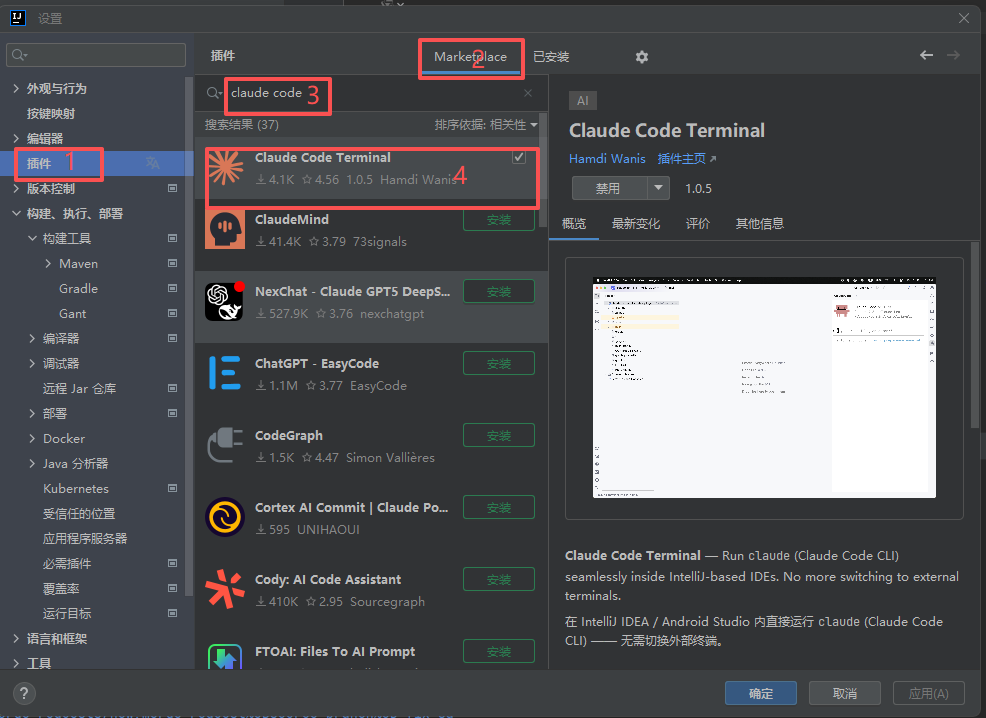
After installation, restart IDEA and verify the plugin has loaded:
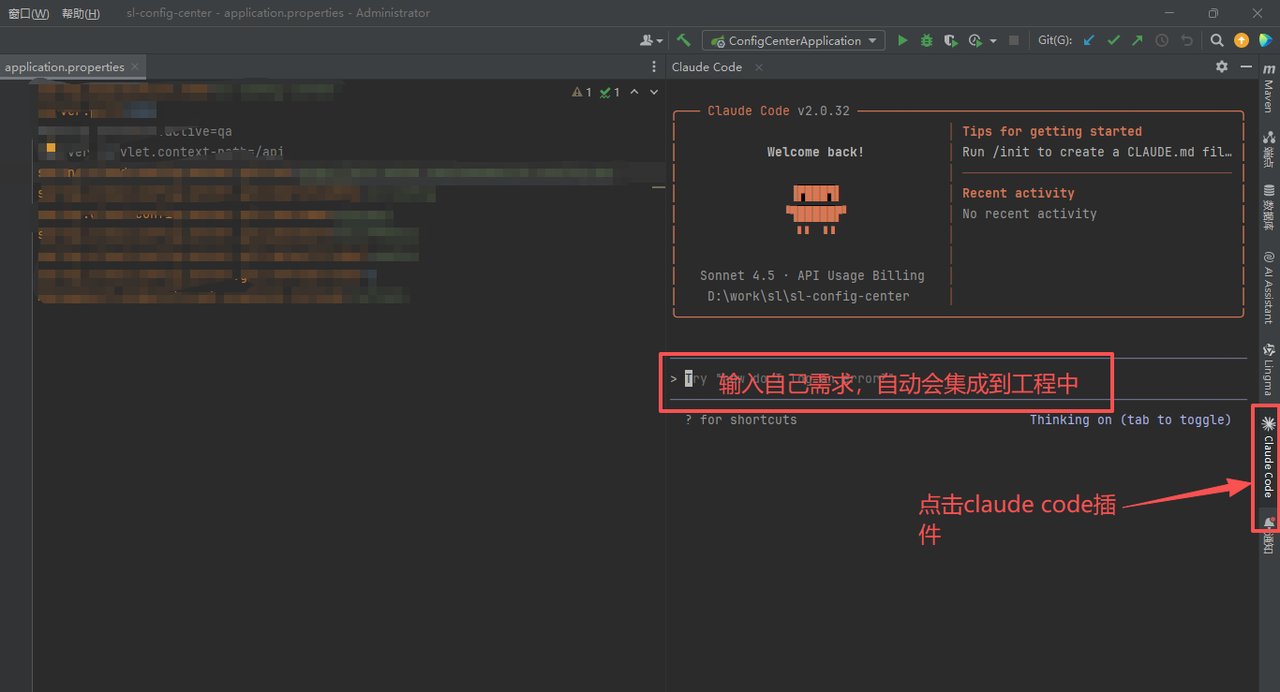
INFO
If the plugin does not appear in the Marketplace, your current IDEA version is too old — upgrade to the latest release.
VSCode
Press Ctrl + Shift + X to open the Extensions panel, search claude code, and install Claude Code for VSCode.
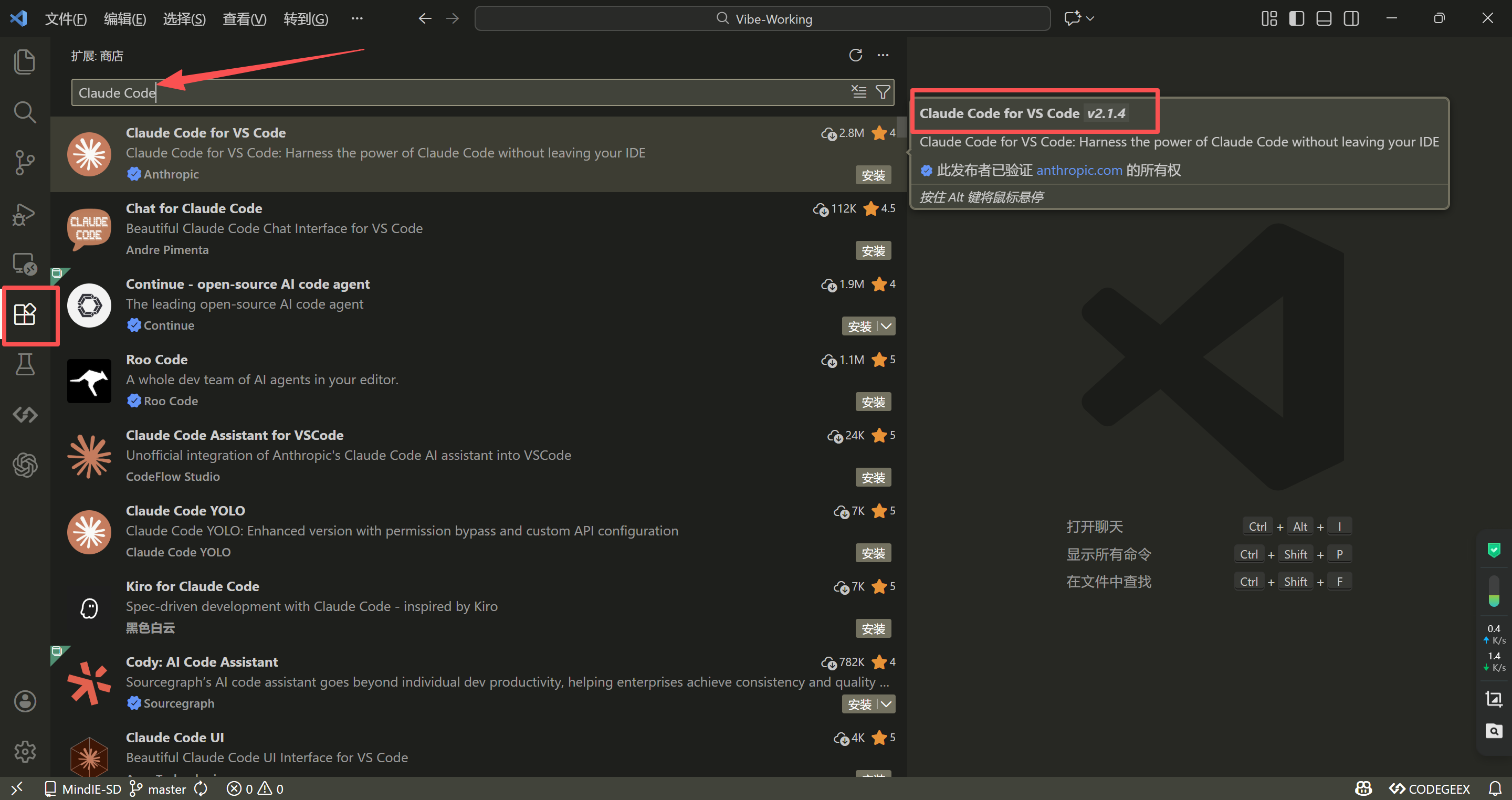
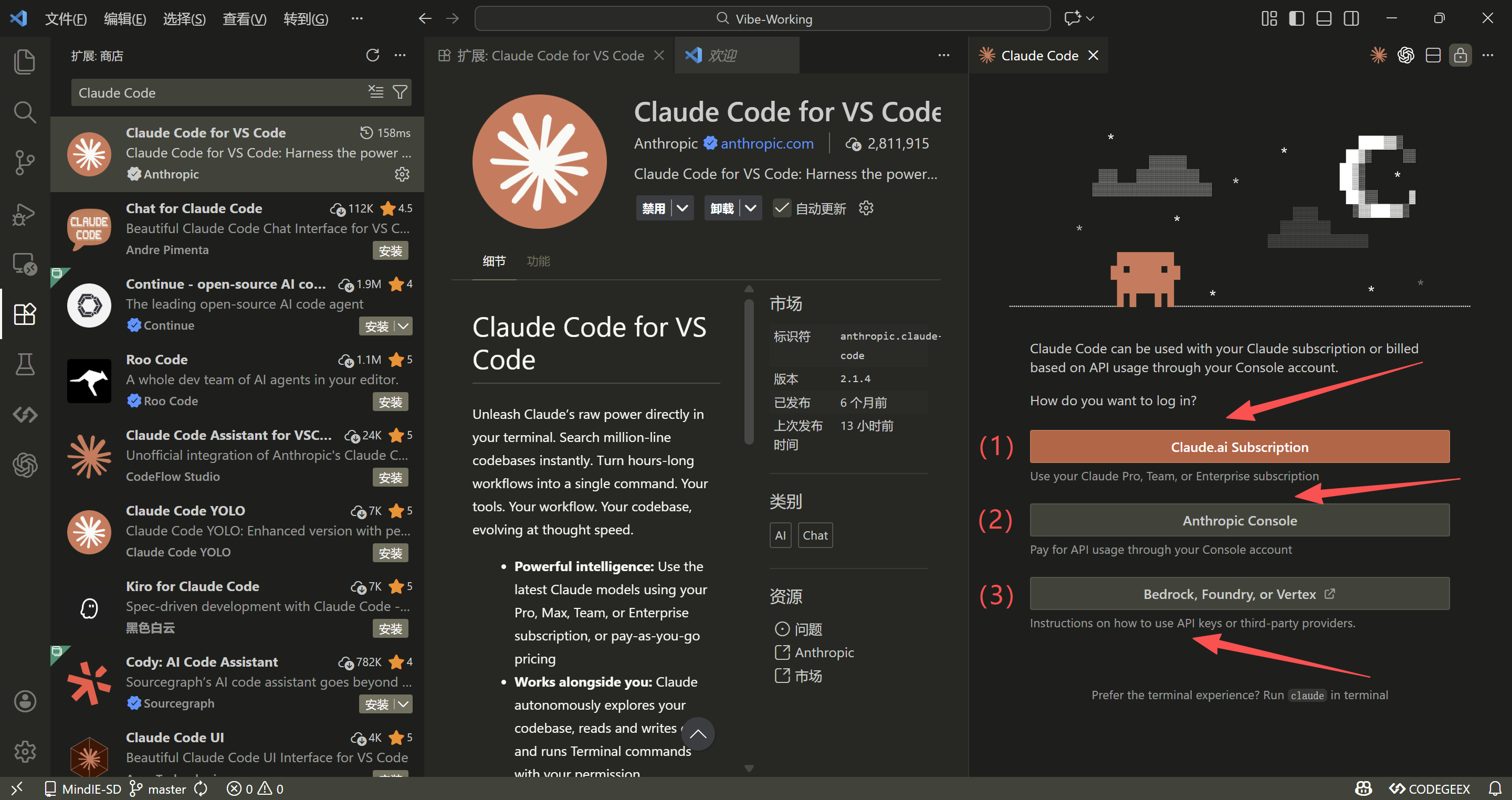
After installation, the extension offers three connection methods:
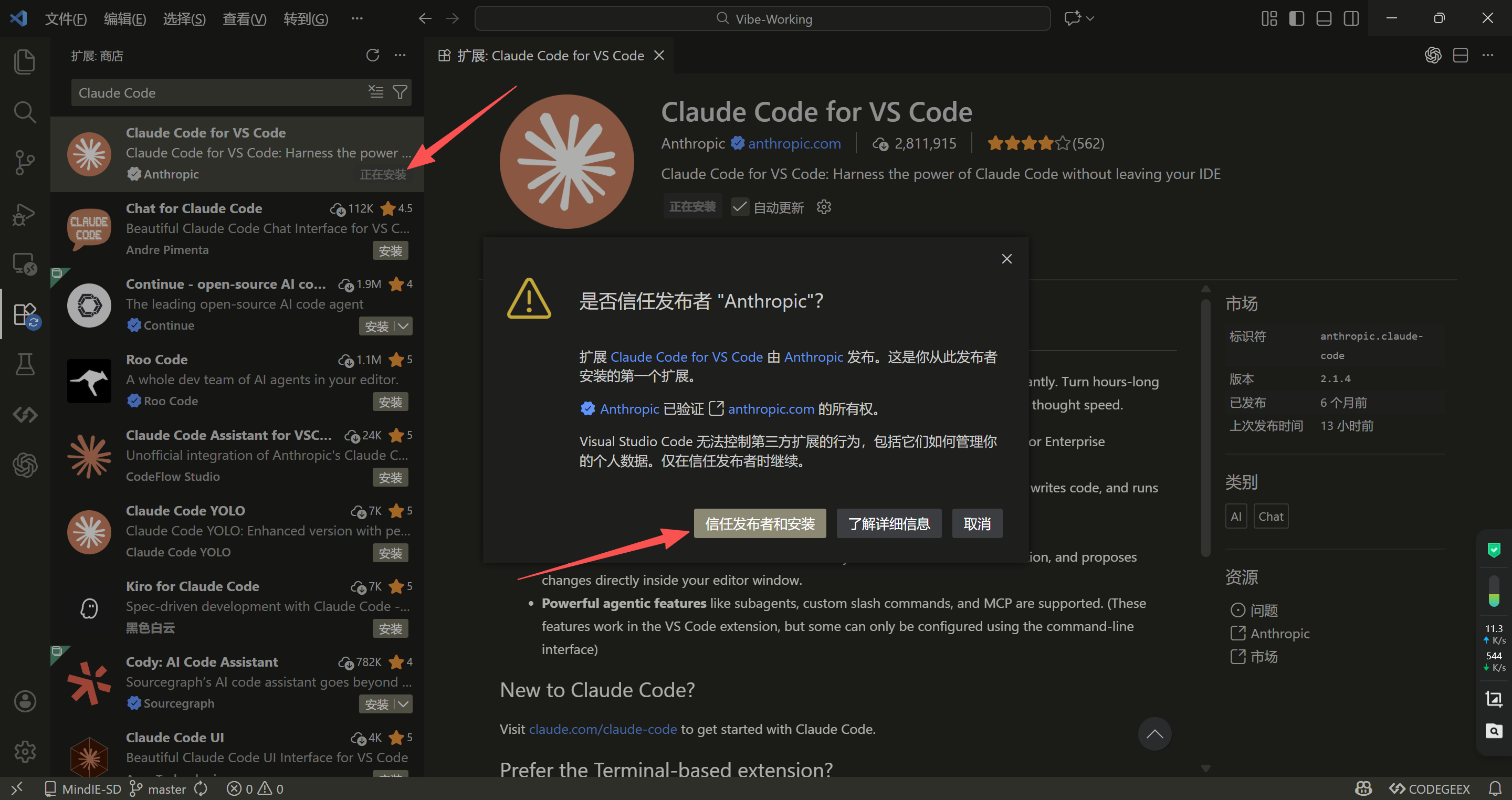
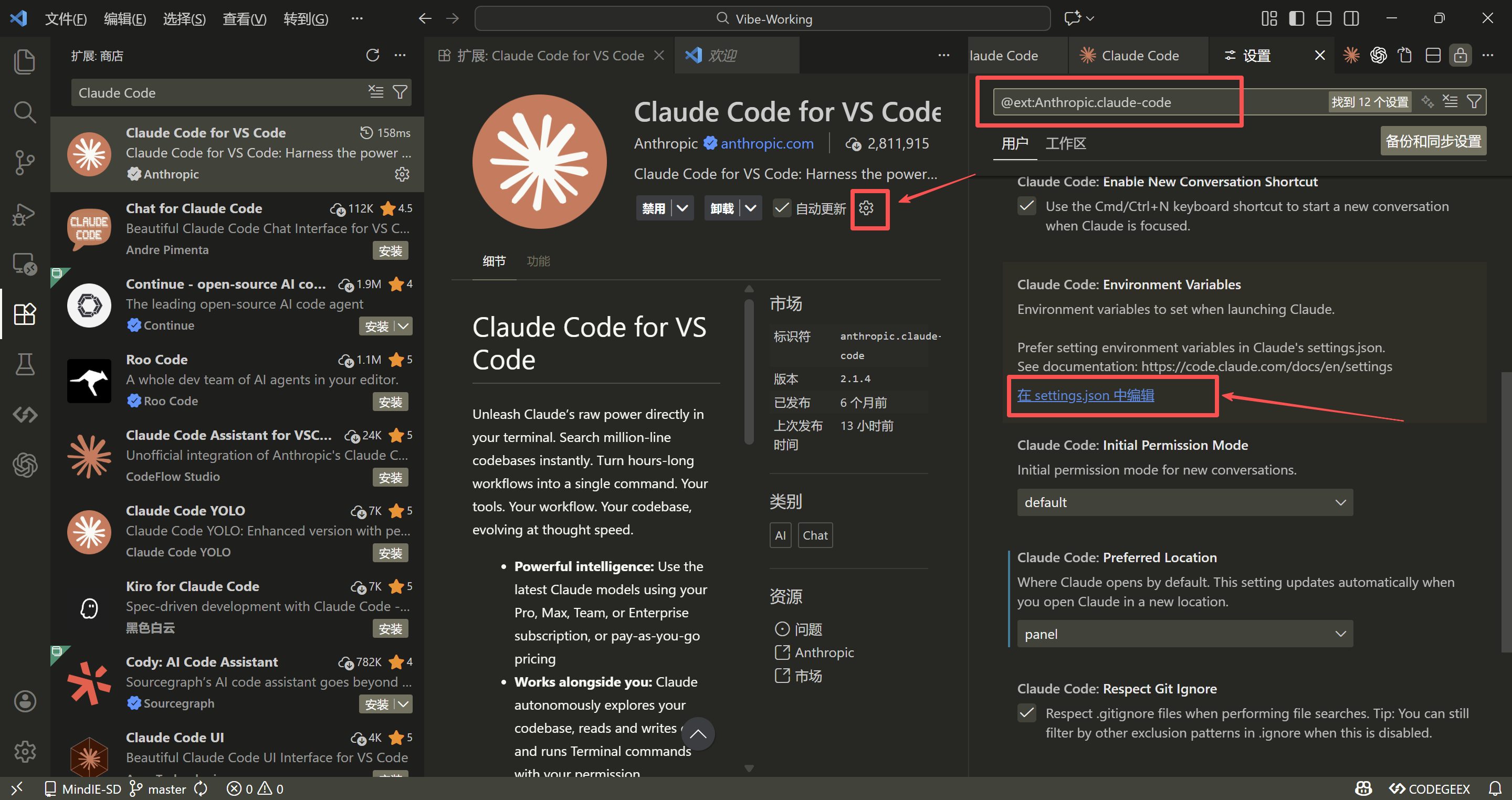
It is recommended to connect to AICentOS via settings.json. Click the gear icon in the bottom-right of the extension → Edit in settings.json:
Add the following to VSCode's settings.json:
{
  "claudeCode.preferredLocation": "panel",
  "claudeCode.environmentVariables": [
    { "name": "ANTHROPIC_AUTH_TOKEN", "value": "replace with your API Key" },
    { "name": "ANTHROPIC_BASE_URL", "value": "https://www.aicentos.com/" }
  ]
}
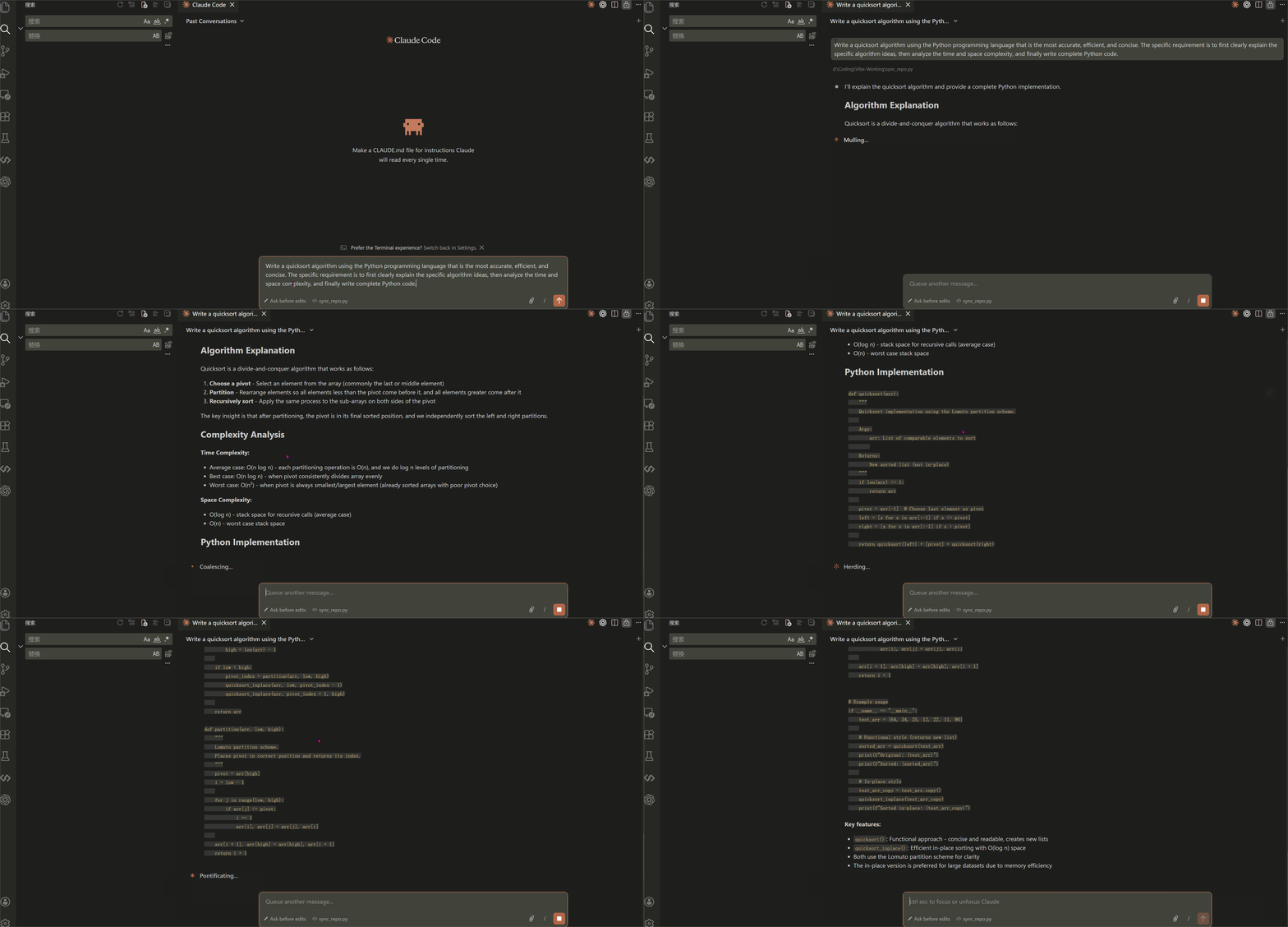
After saving, quit and reopen VSCode — the extension will connect to AICentOS normally.
7. FAQ
403 Error
Token balance is insufficient. Top up in the console and retry.
Windows: Connection Error or 400/401
Re-run the setx commands in PowerShell to write system variables, then reopen the terminal:
setx ANTHROPIC_AUTH_TOKEN "sk-xxx"
setx ANTHROPIC_BASE_URL "https://www.aicentos.com/"
"Unable to connect to Anthropic services"
Full error:
Unable to connect to Anthropic services
Failed to connect to api.anthropic.com: ERR_BAD_REQUEST
Please check your internet connection and network settings.
This happens because Claude Code has not completed onboarding and is still trying to connect to api.anthropic.com. No VPN required. Open ~/.claude.json (the .claude.json in your home directory — not .claude/settings.json) and add "hasCompletedOnboarding": true at the end:
{
  "installMethod": "unknown",
  "autoUpdates": true,
  "projects": { ... },
  "hasCompletedOnboarding": true
}
TIP
Make sure to add a comma after the preceding field (required by JSON syntax). Restart claude after saving to connect normally.